


Tilda Vector
Welcome to Tilda's Free Vector Online Editor
Easily create and edit SVG files and vector images online for free. No third-party software or platform sign-up required.

Work on vector graphics directly in the browser


Create or edit a vector
Start by drawing a vector element using one of the tools, or upload an SVG file by clicking Open.

Draw Tool (D)
Draw using straight and curved lines. To finish an open shape, press Esc or double-click an endpoint. If you close the shape, the drawing will automatically complete.


Freehand Tool (Shift + P)
Draw any shape freehand, and it will convert to vector lines. Extend your shape from any endpoint. Then, customize the style by adjusting the size, stroke and fill color, etc.

Select (S)
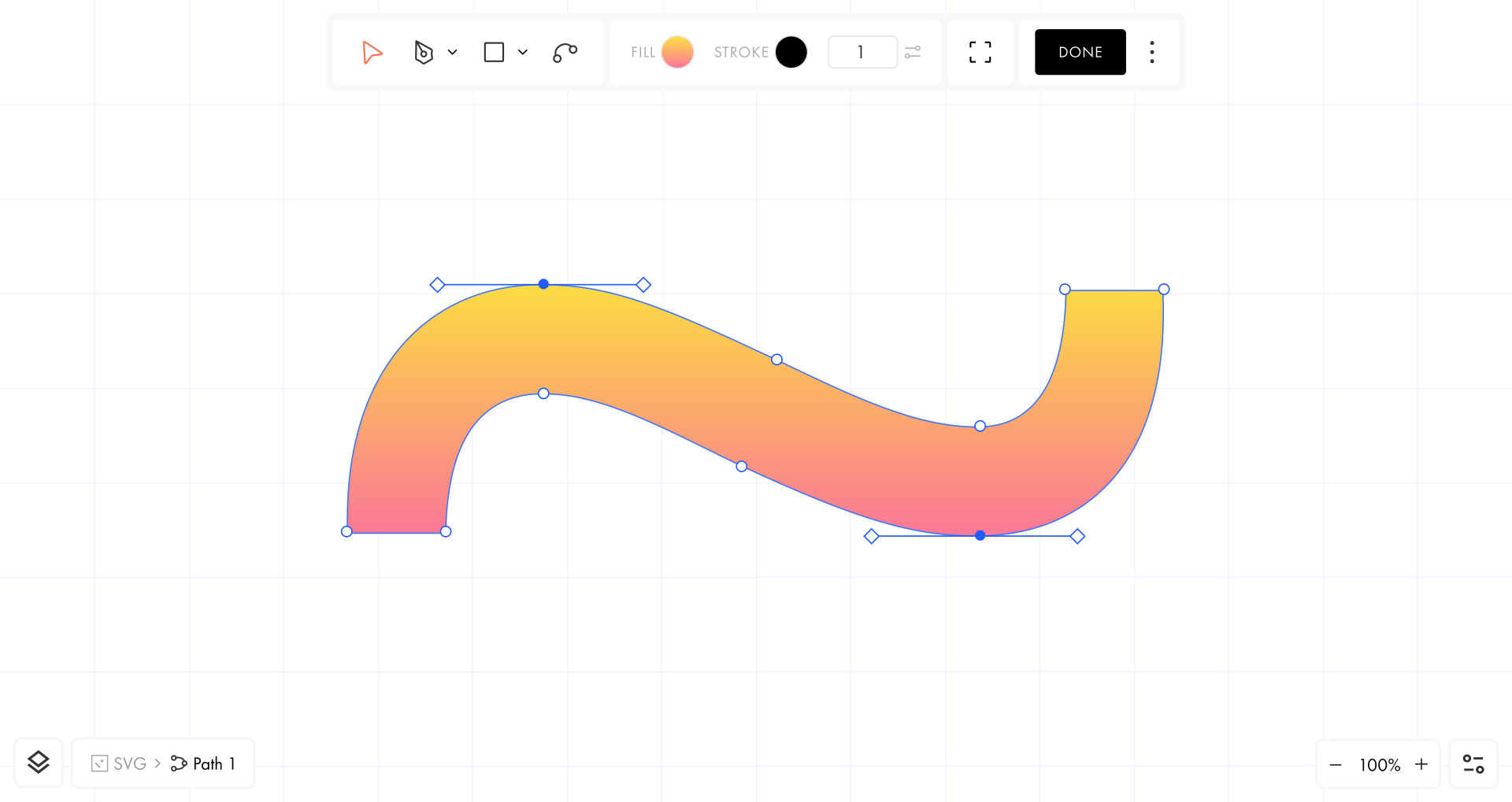
Select an element to adjust its fill and stroke color, as well as the stroke width. You can also move, rotate, and resize one or multiple elements as a single vector.


Bend (B)
Bend the drawn lines and adjust the endpoints. This tool only allows you to modify the shape of the element. To change its appearance, use the Select tool.

Basic Shapes
Add and edit shapes like rectangles, ellipses, and polygons, etc. from the Basic Shapes dropdown menu. For shapes with sharp angles, specify the number of vertices in the Count field and their height in the Ratio field.


Layers
Click the icon in the bottom left corner or press Cmd + L to open the Layers panel. Here, you can reorder, rename, hide, lock layers, and more.

Customizable Workspace
Use the percentage widget in the bottom right corner to adjust the zoom level. Click the three dots and select Snap to pixels to enable visual guides for easy alignment. In the same drop-down menu, choose Pixel grid to show the pixel grid (visible at zoom levels over 600%).


Viewbox Settings
Use Viewbox to manually crop the vector and adjust the amount of white space around it. If you export the element without this setting, it will be automatically cropped to the edges of the shape.

Keyboard Shortcuts
Edit and manage elements using keyboard shortcuts. To view the full list, click the three dots in the toolbar → Shortcuts.


Zero Block Also Features a Vector Editor
Click Add Vector to easily add and edit vector elements directly in Zero Block, or upload a custom SVG file. All tools from the online editor are available in Zero Block.