How to Write Effective Prompts for Vibe Block
The more details you provide, the better the generated block will be.
Try structuring your prompt like this:
- What to create — describe the main idea. For example: “Create an interactive quiz about...”
- Purpose — explain what the block should help users do, such as “collect reviews,” “calculate the price,” or “train a model.”
- Structure and elements — describe what the block should include. List screens, form fields, buttons, sliders, and other elements. For example: “Start screen: title, description, Start button; Question screen: question counter, answer options as cards, Next button; Final screen: result with a recommendation.”
- Style and colors — describe the visual design. Specify the style, such as minimalist, premium, or dark, as well as accent colors and typography.
- Behavior and animation — explain what should happen when users interact with the block. For example: “Show details when a card is clicked,” “Show the result immediately after the field is filled in,” or “Add a smooth entrance animation.”
Example prompt: Create an interactive quiz called “How to Choose an Online Marketing Course.” Start screen: title, description, and Start Quiz button. Question screen: “Question 1 of 5” counter, question text, answer options as clickable cards, and Next button. Final screen: result with a course recommendation. Style: modern, dark background, blue accent color, and soft shadows. Add animated transitions between screens.
A few tips:
- Use references. If you have a screenshot, mockup, or image you like, attach it using the paperclip icon in the chat. AI will take its visual style into account when generating the block.
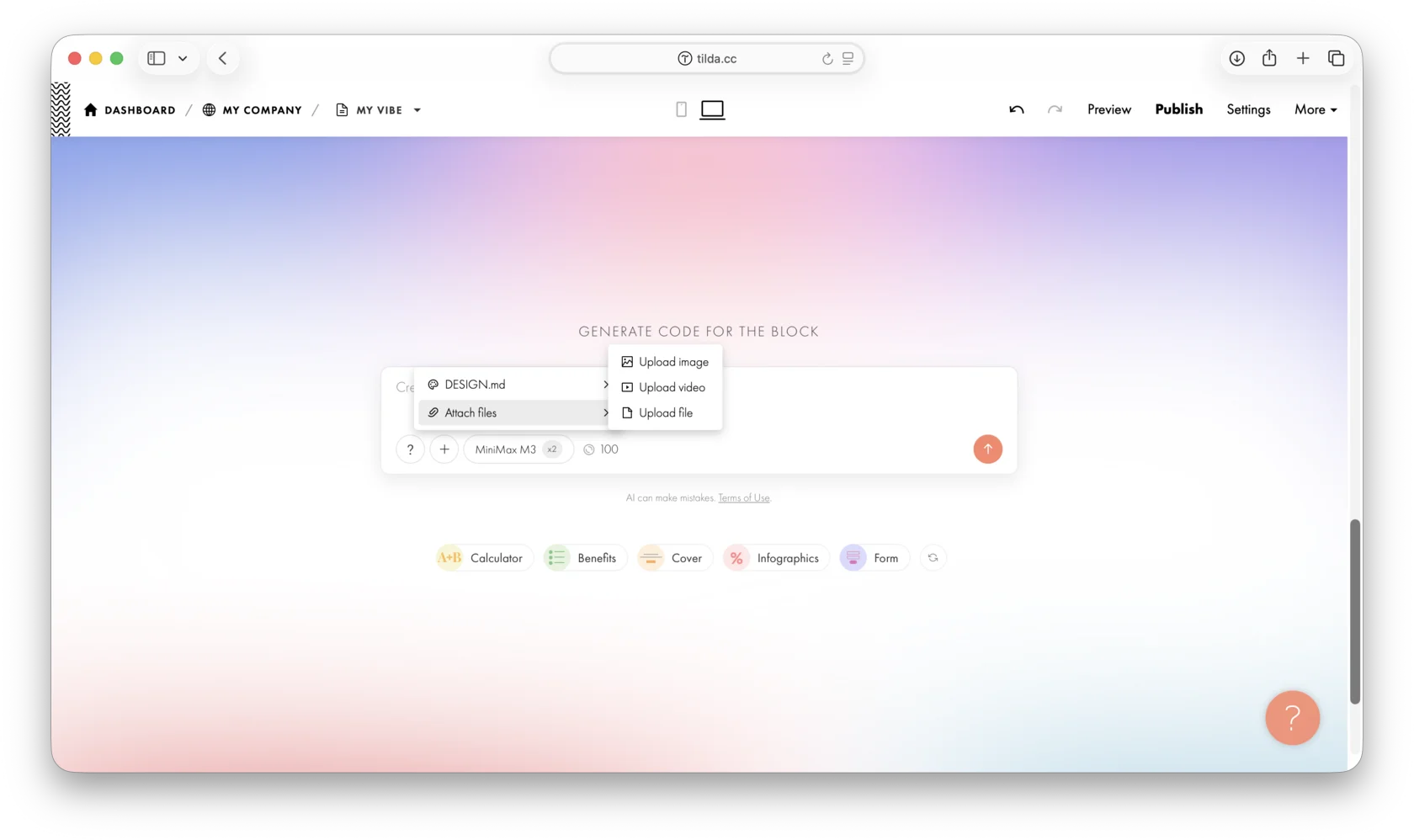
- Explore examples. The interface includes an example gallery under the ? icon. Click an example to add it to the prompt field, then use it as a starting point and adapt it to your needs.
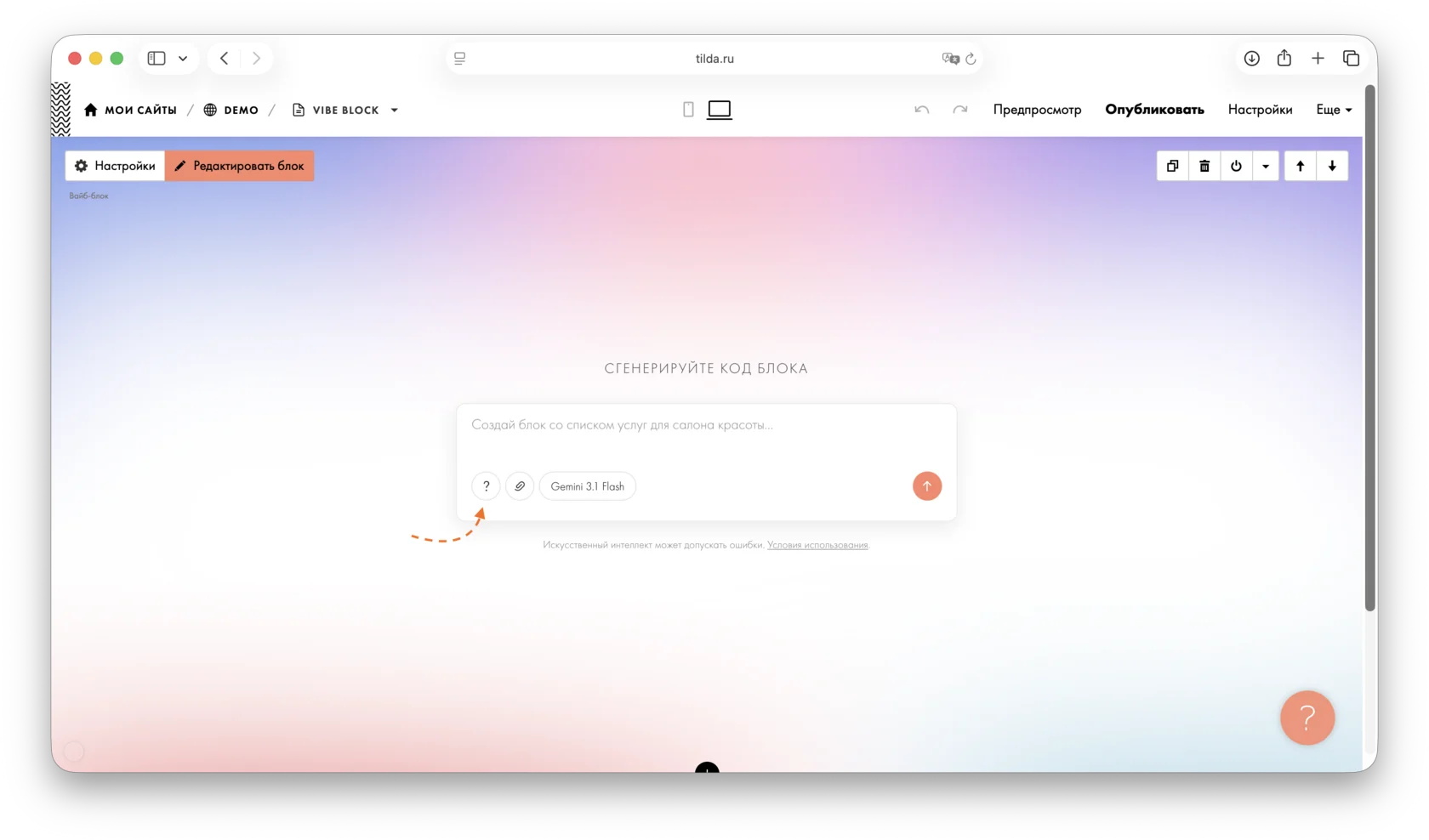
- Iterate. If the result is not quite what you need, you do not have to write another detailed prompt from scratch. Add a short follow-up, such as: “Make the buttons larger and add a shadow on hover.” AI will regenerate the block with your changes.
- Choose an AI model. You can switch models in the chat. More advanced models may produce better results for complex interactive tasks, but they use more requests from your limit.
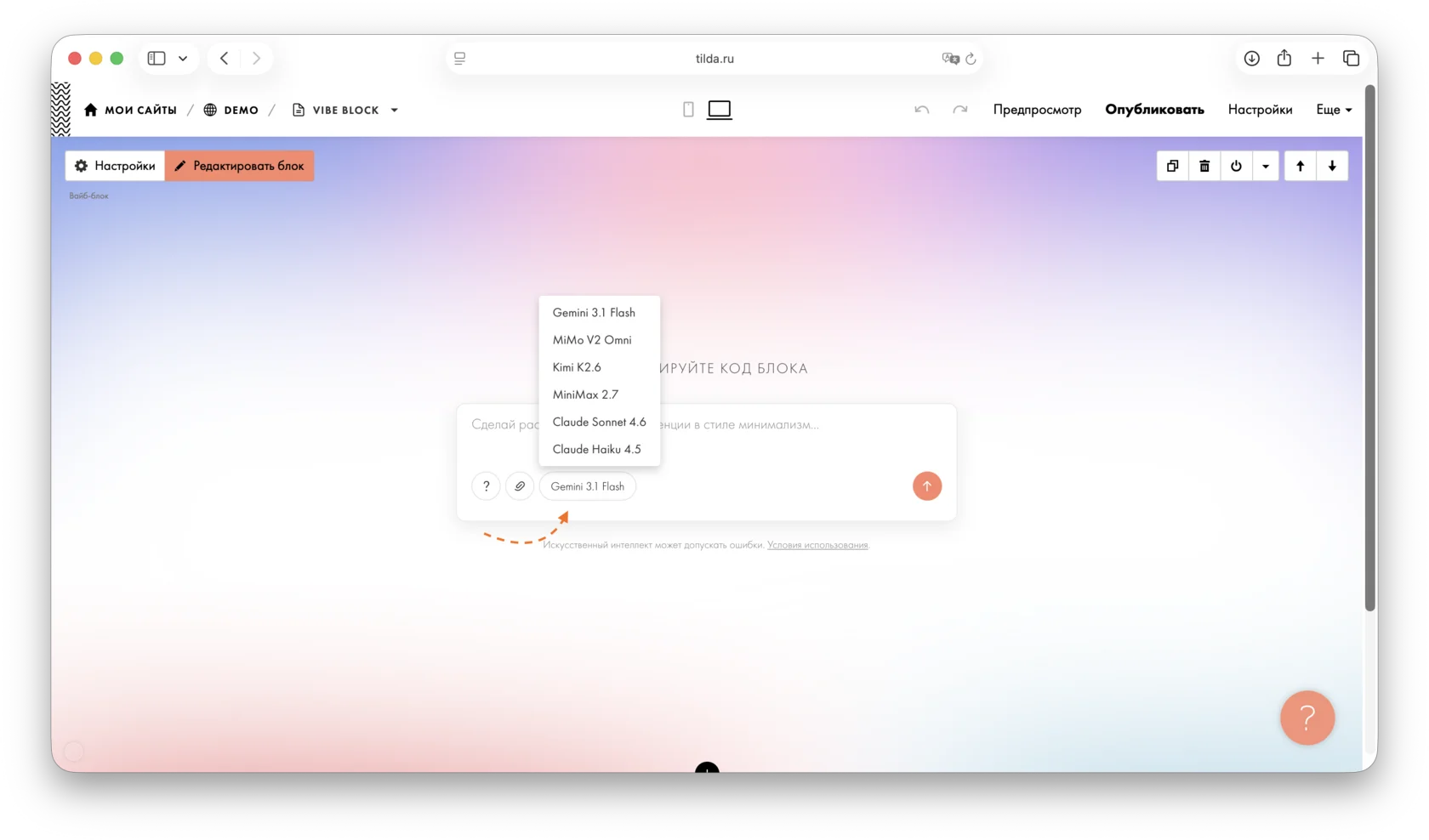
After you submit a prompt, AI will generate the code and build the interface directly in the Tilda editor. The finished block will immediately appear on the page so you can review the result. Forms inside the block support standard Tilda integrations, such as sending leads to CRM or email.
Start with a simple prompt, then gradually add more details as needed.
Learn more about creating custom blocks with AI using Vibe Block:
Perguntas semelhantes

