
How to import a Figma design to a Tilda website?
1.In your Figma account, click on the Actions in the bottom toolbar and select the Plugins & widgets tab. In the search, enter the name of the Figma to Tilda plugin and click on it or add the plugin via the link.
2.Click on the Run button to activate the plugin.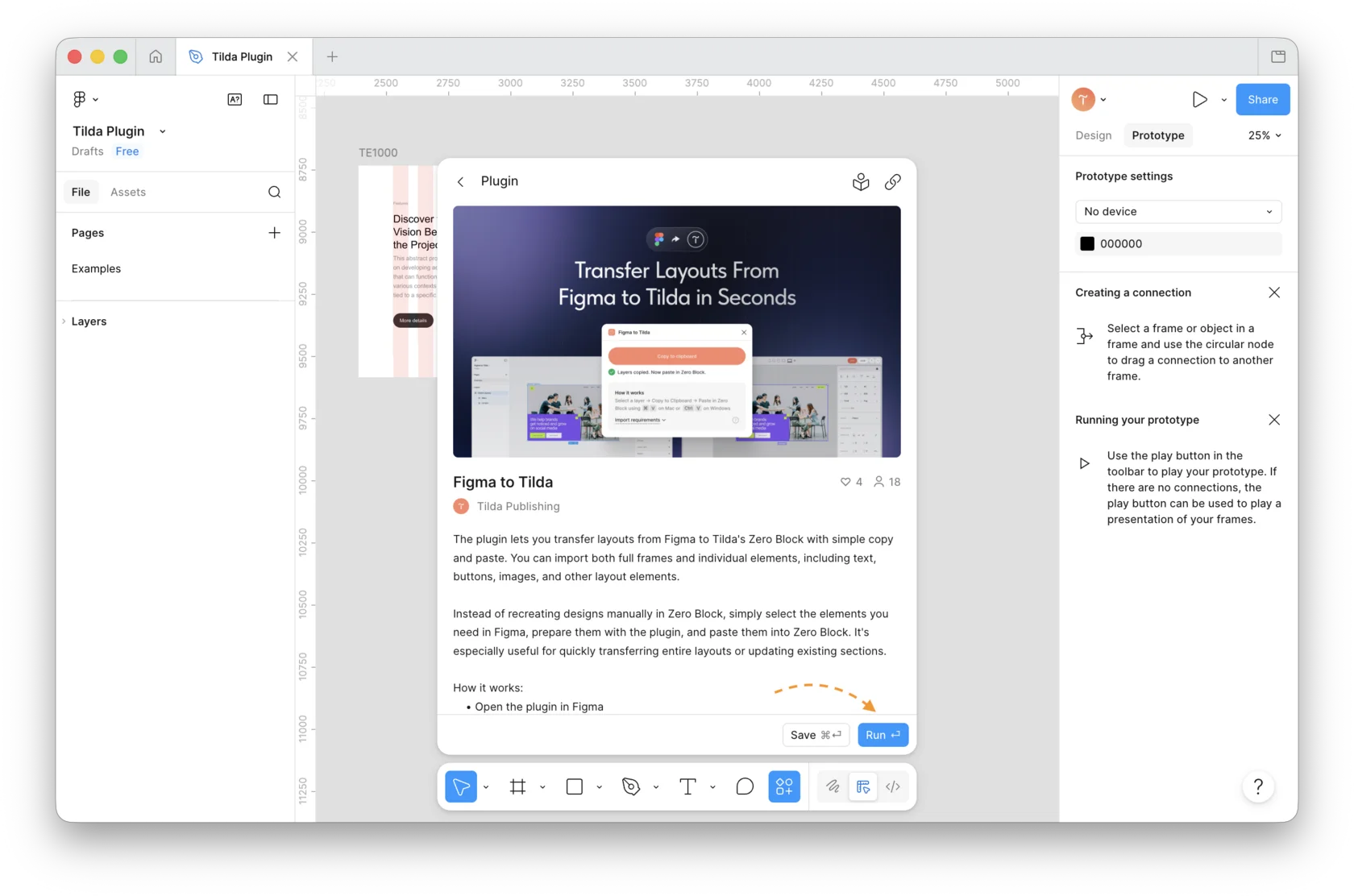
3.Once you have added the plugin, select the layer you need in the layout. The selected layer will be displayed in the Selected layers field of the plugin window.
When copying, you can select one layer as well as several ones. This can be the whole root Frame or a separate element — such as an image, button, or text.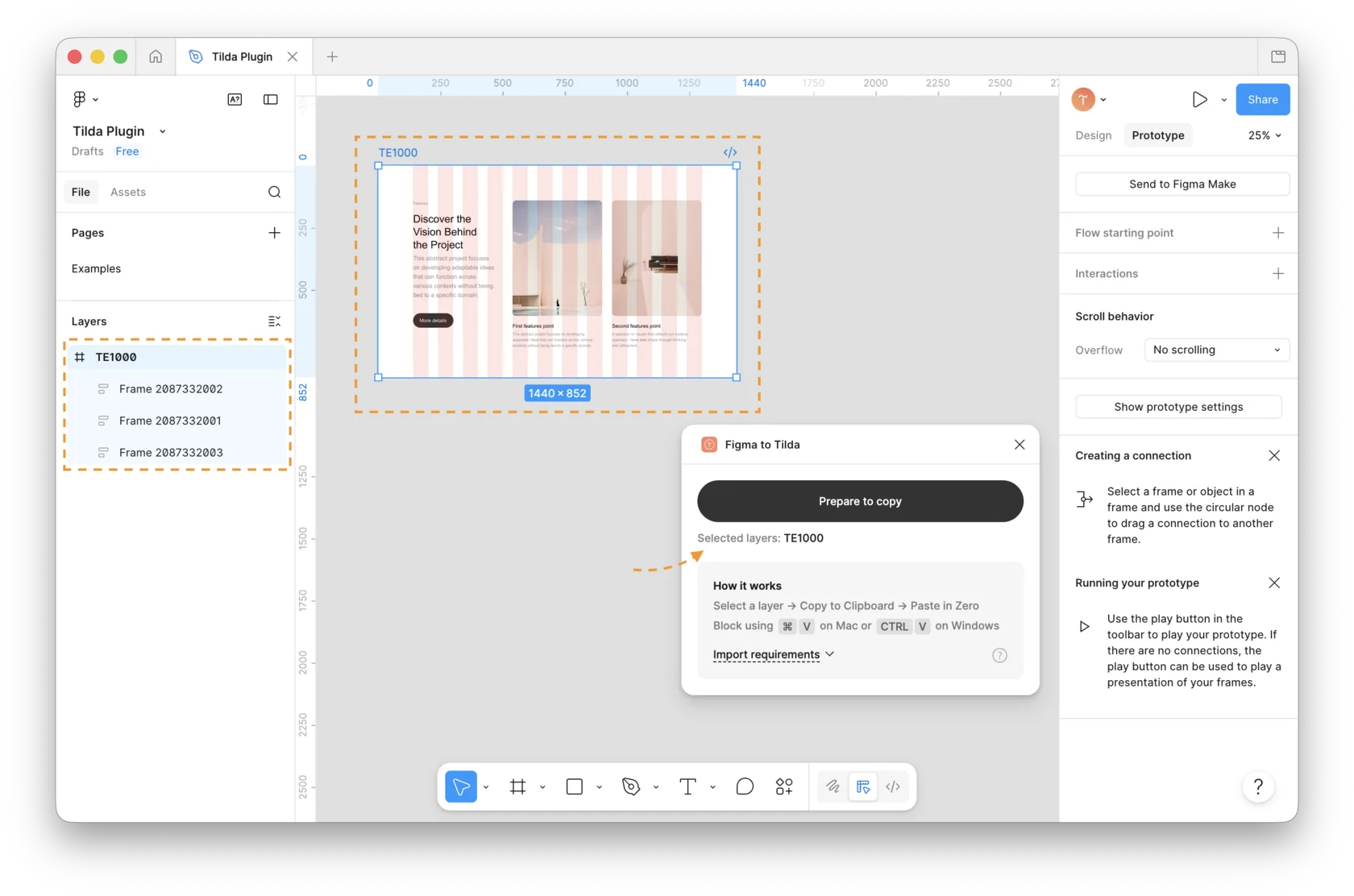
4.In the plugin window, click on the Prepare to copy button to get layers prepared for importing.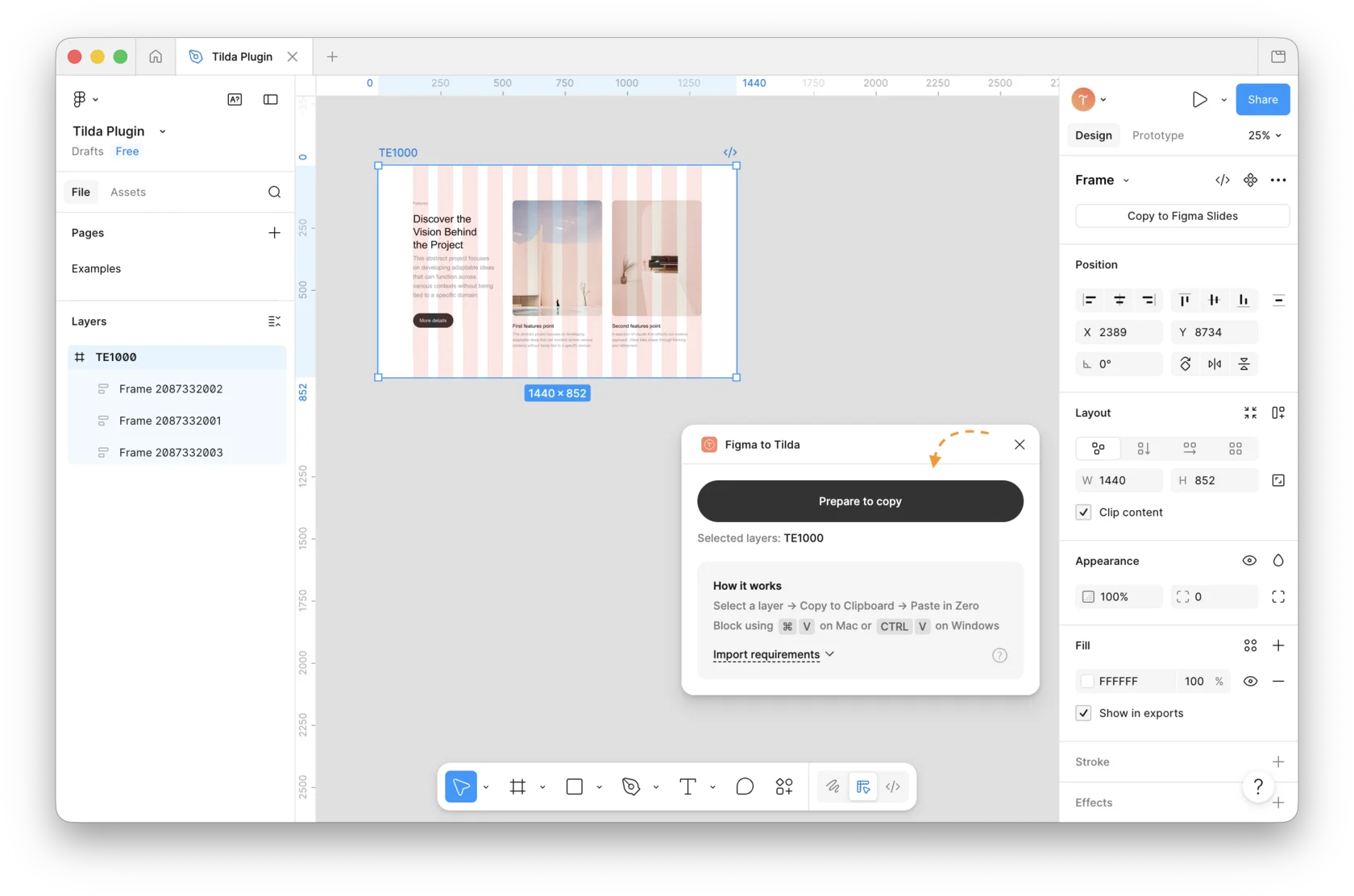
5.When the Frame is ready to be imported, click on the Copy to clipboard button.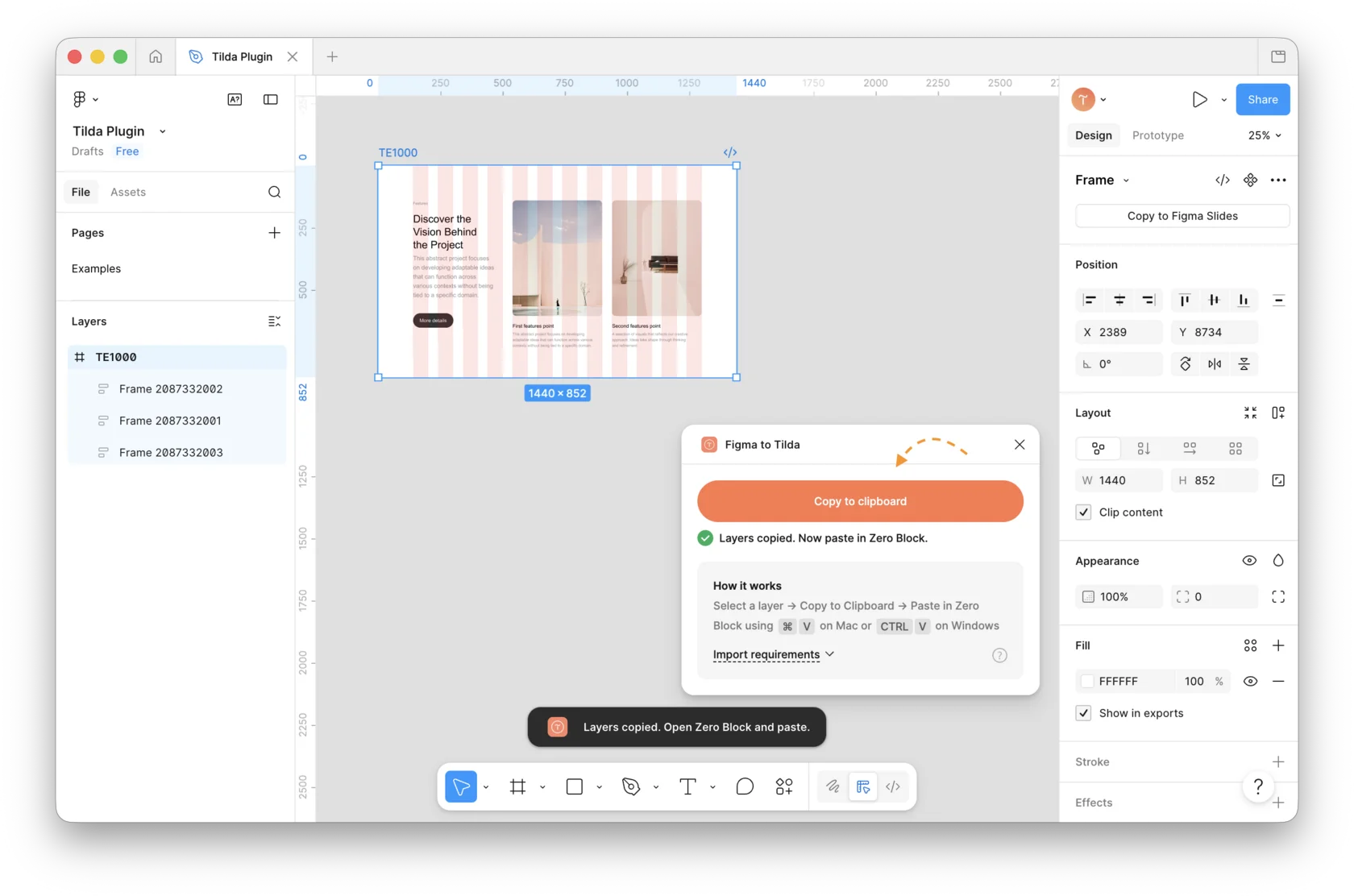
6.Go to Tilda → open Zero Block and click on the keyboard shortcut: Ctrl+V on Windows or Command+V on Mac to paste the Frame.
The information about layout requirements can be found in the Help Center - https://help.tilda.cc/zero/figma-import
Similar questions

