
How to upload a product catalog from Tilda to Google Merchant Center?
You cannot download a TSV file directly from Tilda for upload to Google Merchant Center. However, you can download your product catalog as a CSV file and convert it to the required format.
To create a TSV file for Google Merchant Center, follow these steps:
1.Go to catalog, click the three-dot icon, and select download product list as CSV.

Open additional options, set separator to Semicolon, select the Export product URL checkbox, and click Export.

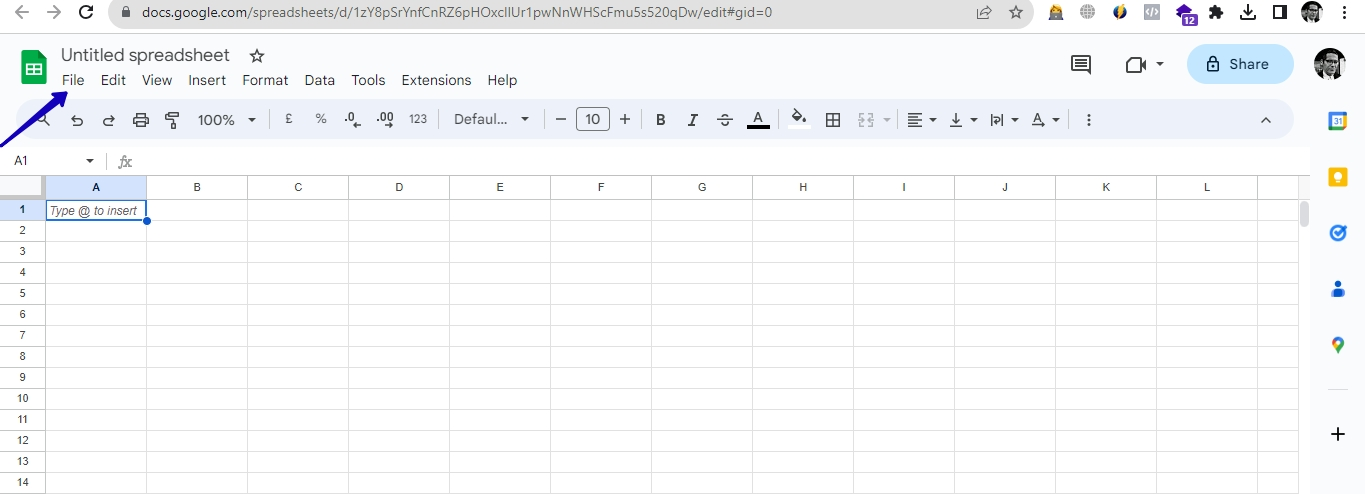
2.Open Google Sheets, go to file → import → upload, click browse, and select the CSV file exported from your product catalog.
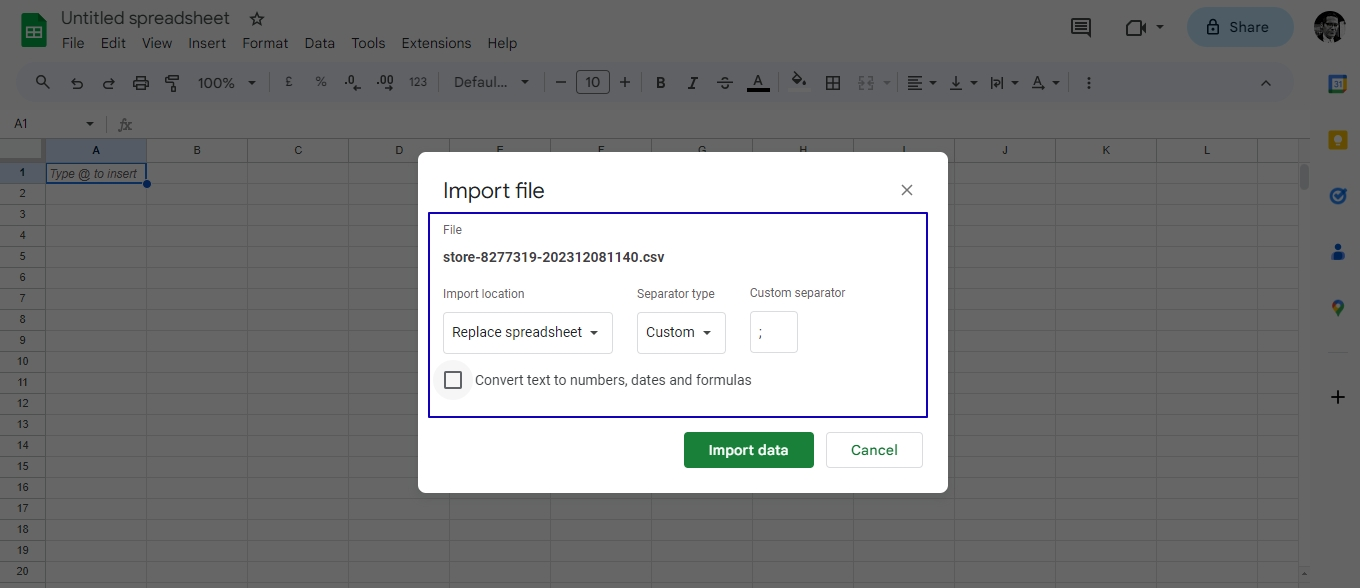
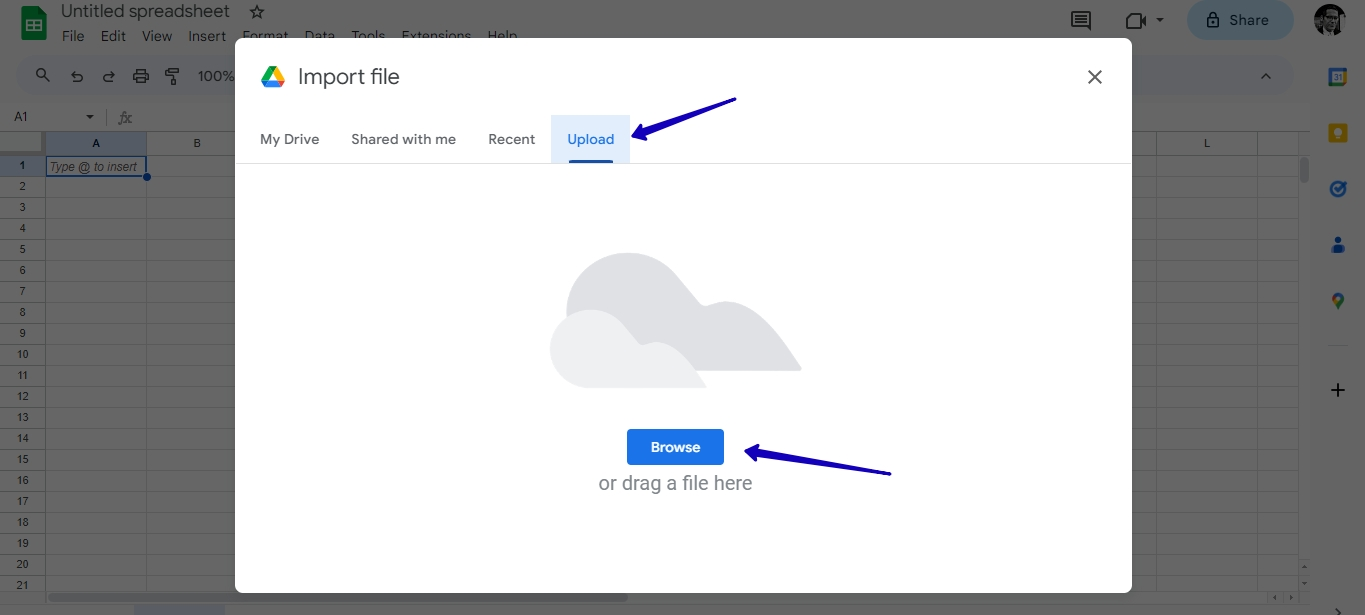 Before importing the file, set separator type to custom and enter a semicolon: ;. Then click import data.
After the CSV price list has been imported into Google Sheets, update some column headers so they match the Google Merchant Center product data specification. For example:
Rename Url to link
Rename Photo to image_link
Rename External ID to id
Learn more about the Google Merchant Center product data specification in Google’s Help Center: https://support.google.com/merchants/answer/7052112?visit_id=638376210530781658-3321445628&rd=1
Please read the specification carefully. If the file contains extra columns or the column names are incorrect, products may be uploaded with errors.
Next, go to file → download and select the .tsv format.
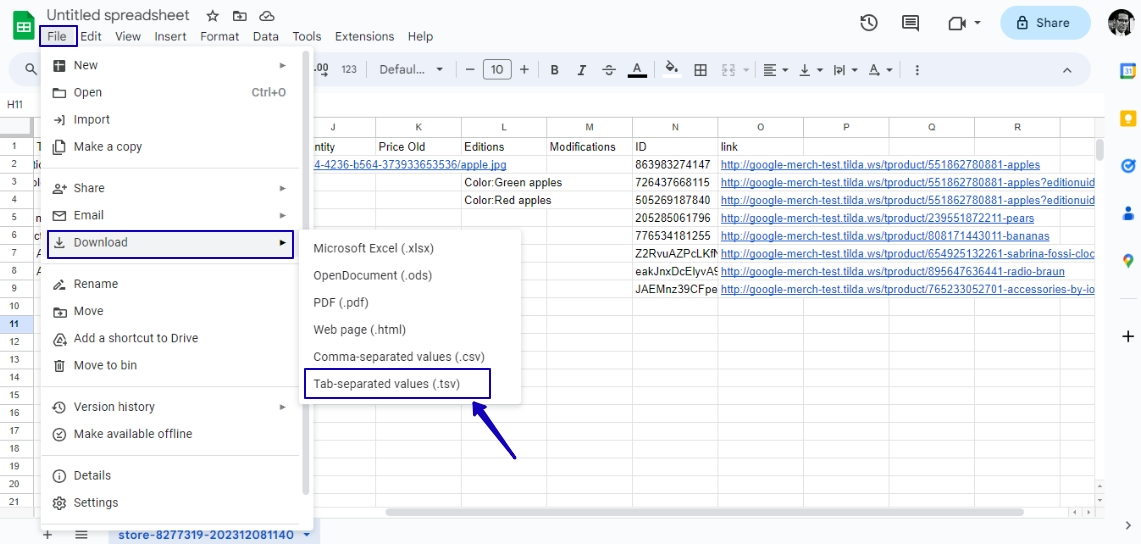
This will give you a TSV price list file that can be imported into Google Merchant Center.
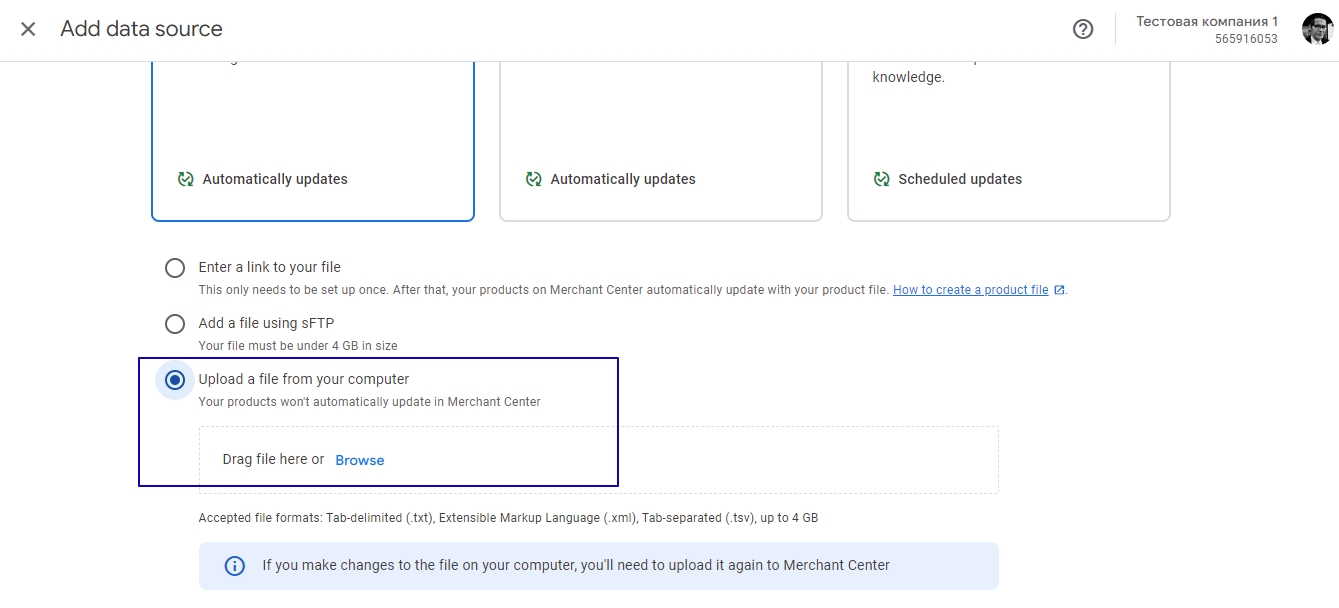
Go to your Google Merchant Center account, open products → all products, select add products → add another product source → upload file from your computer, choose the TSV price list file, upload it, and wait until the upload is complete.
Similar questions

