How to Generate an Image on Tilda
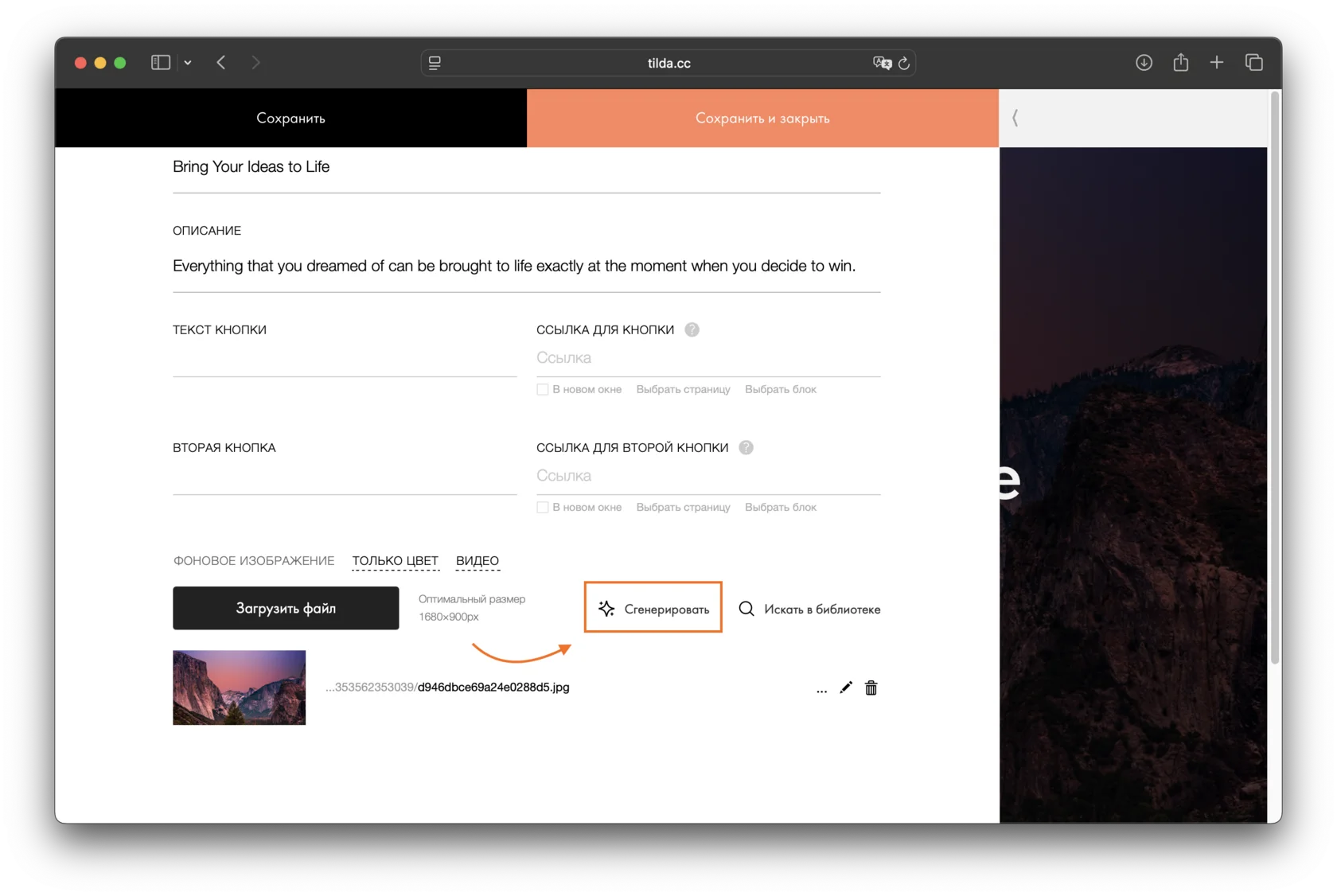
To generate an image in a block, click Content and find the Generate button next to Upload file.
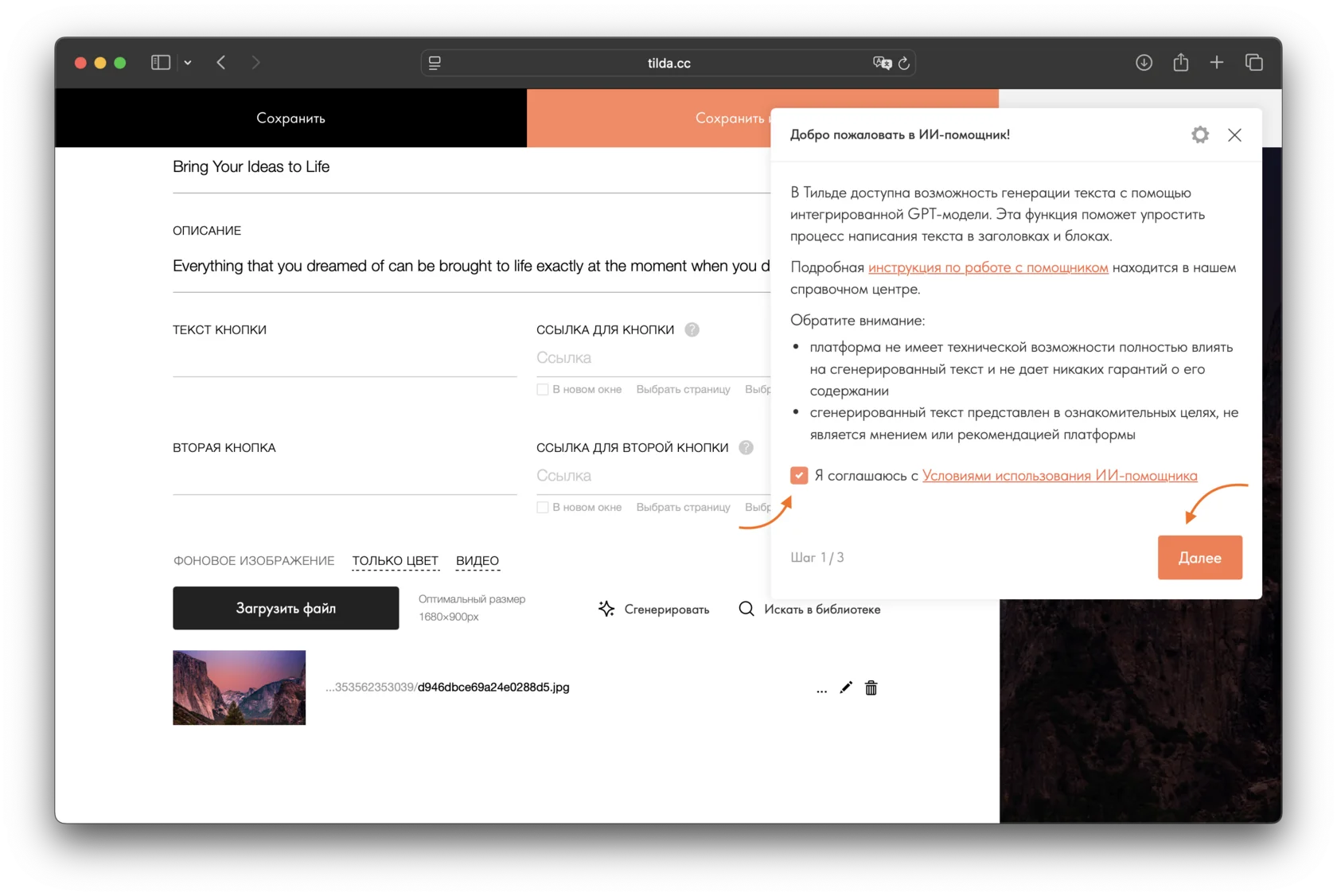
Select the checkbox confirming that you agree to the AI Assistant terms of use, then click Next to specify the website topic.
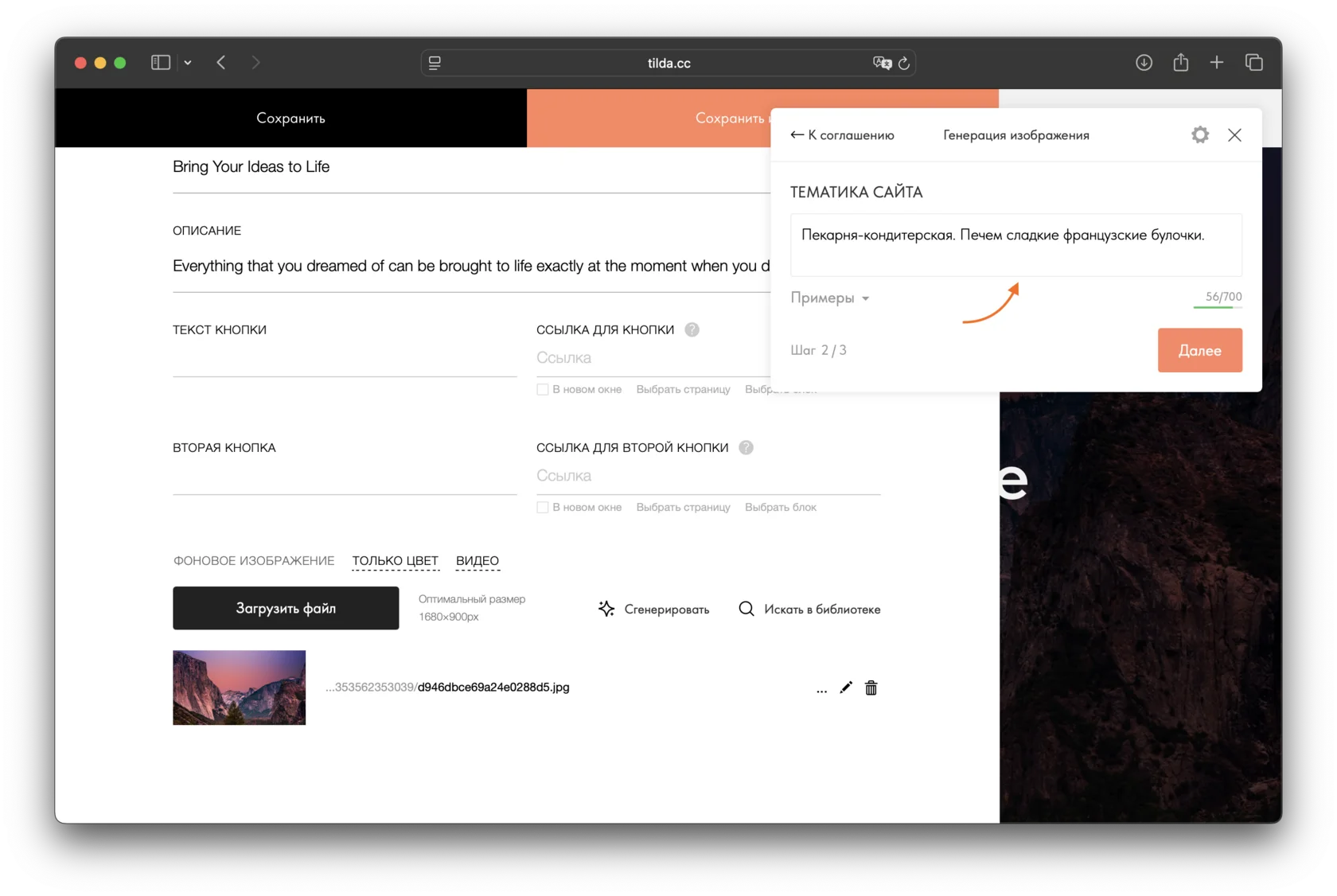
Enter the website topic if you have not specified it earlier in the project settings. Or leave the field empty if you do not want the image to be tied to a specific topic.
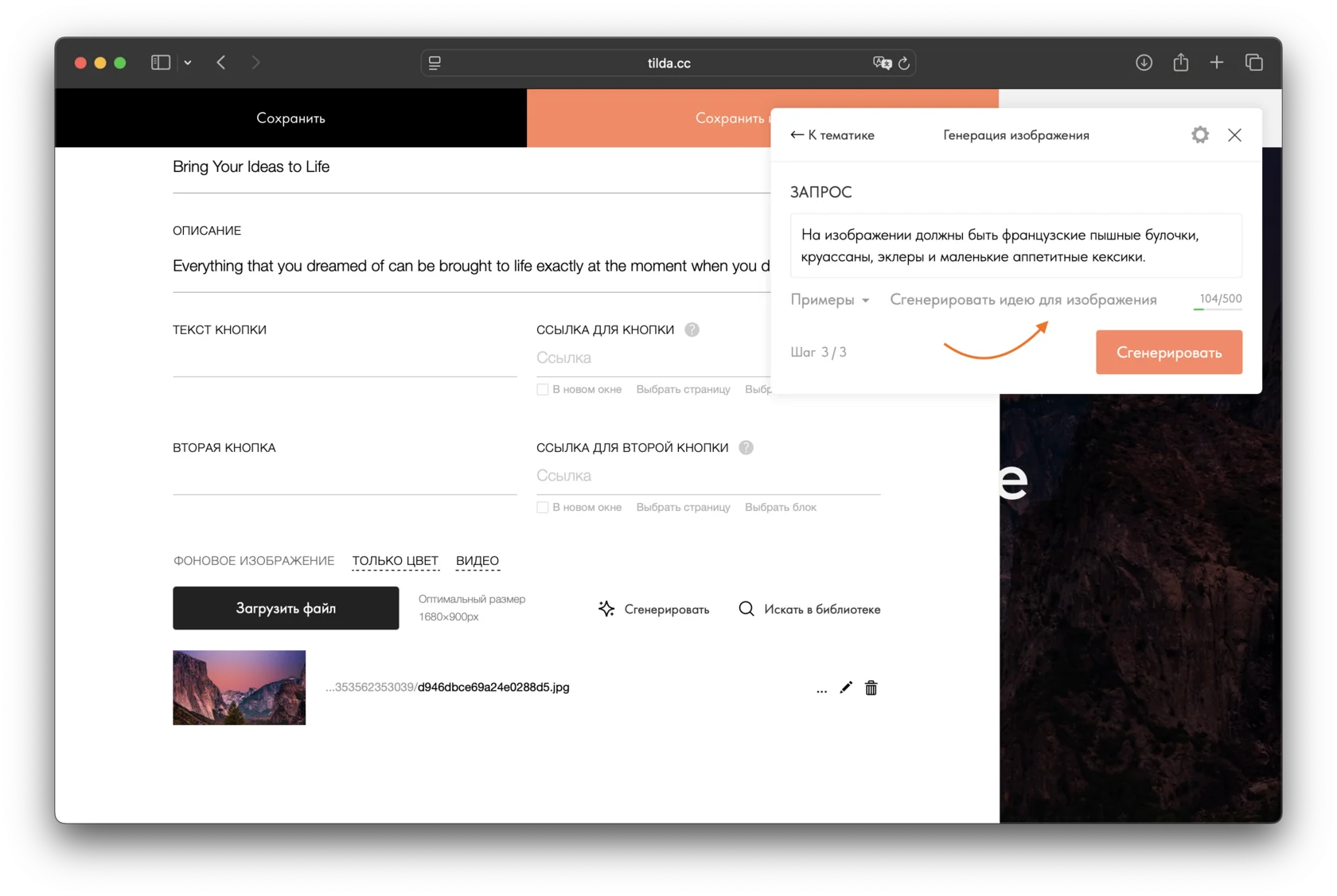
Enter your prompt manually or click Generate an image idea. If the website topic is specified in the project or was entered in the previous step, the AI Assistant will generate a prompt based on it. Then click Generate.
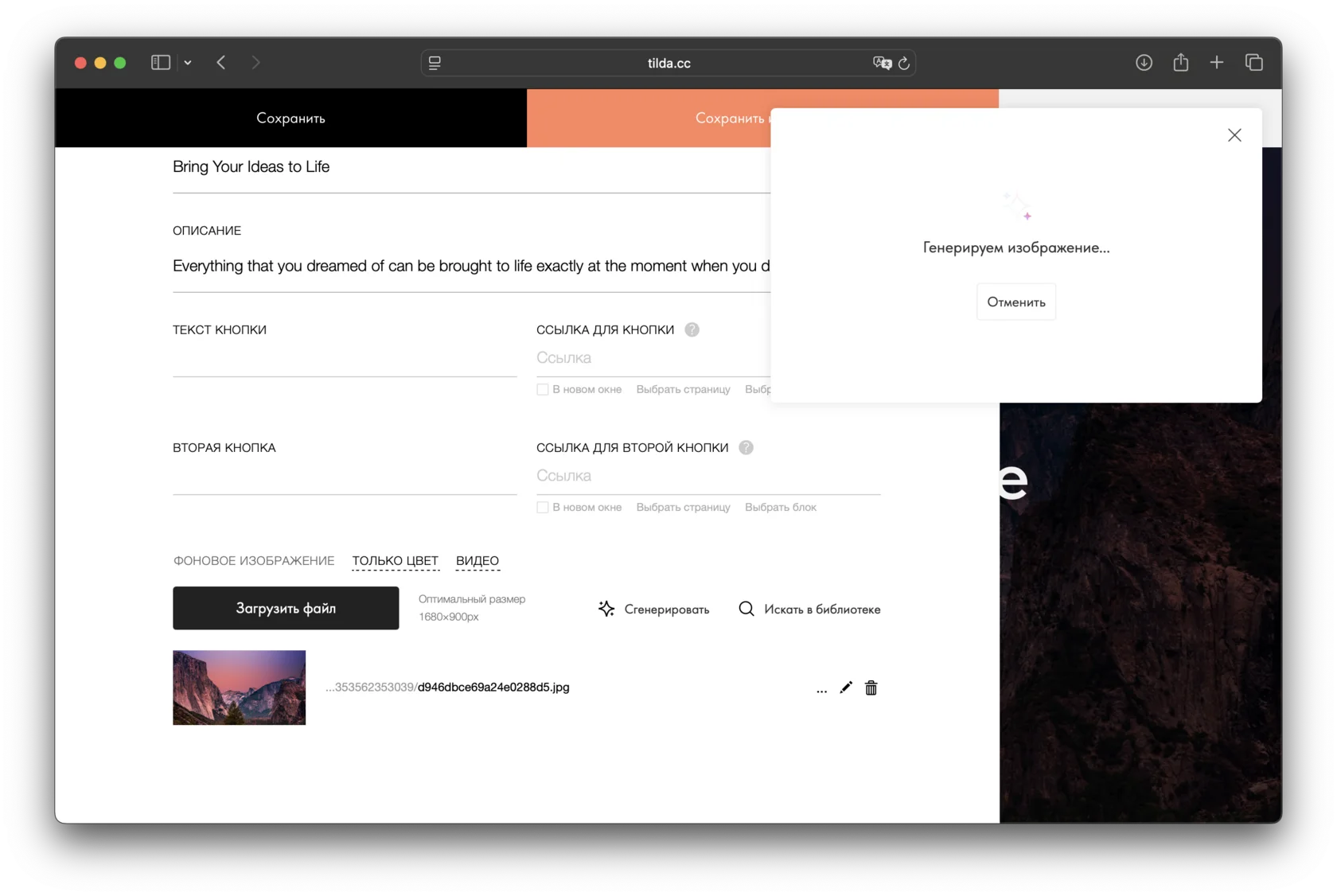
Wait while the image is being generated.
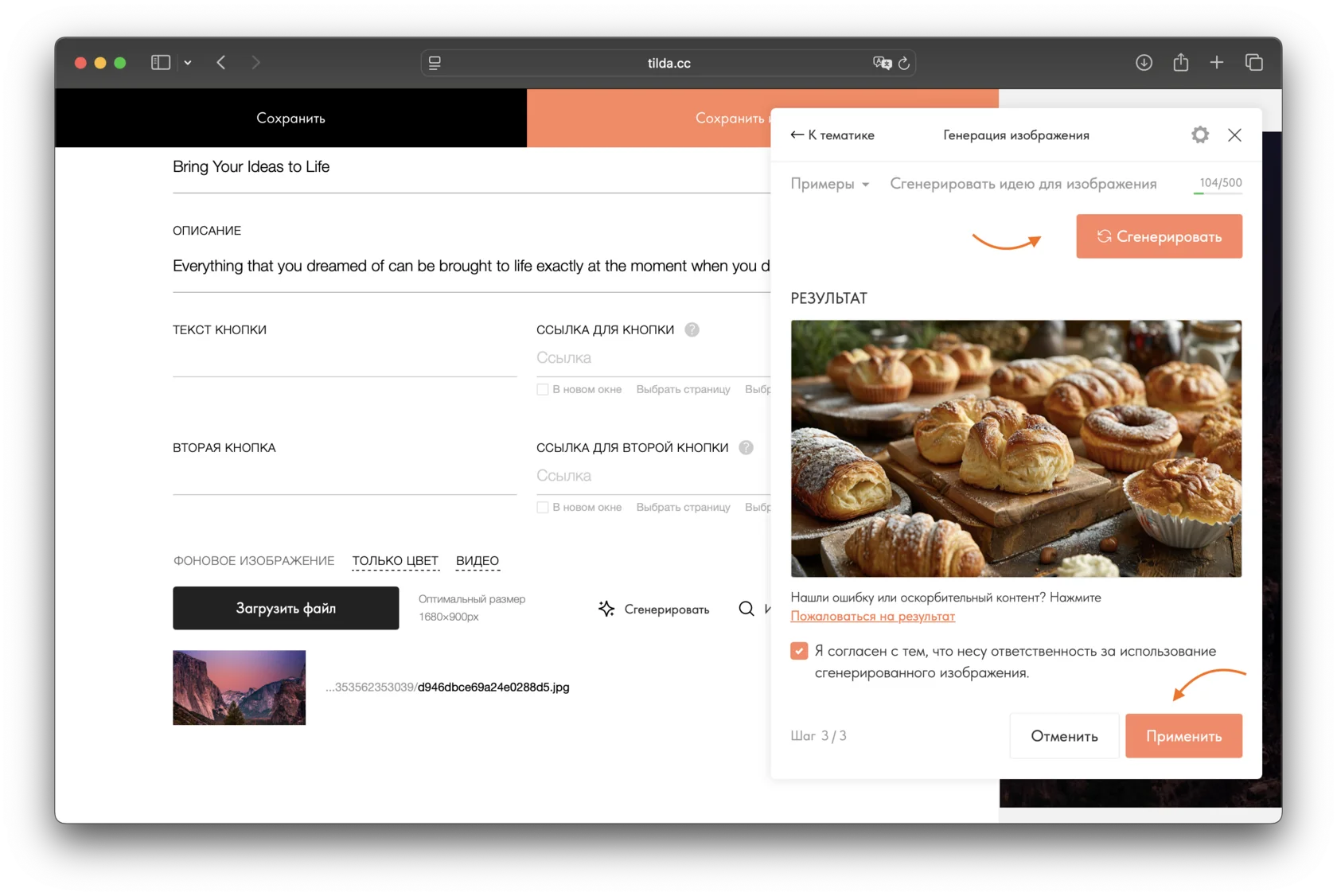
If you do not like the generated image, click Generate again. The AI Assistant will create a new version based on your prompt.
If the image matches your request, click Apply.
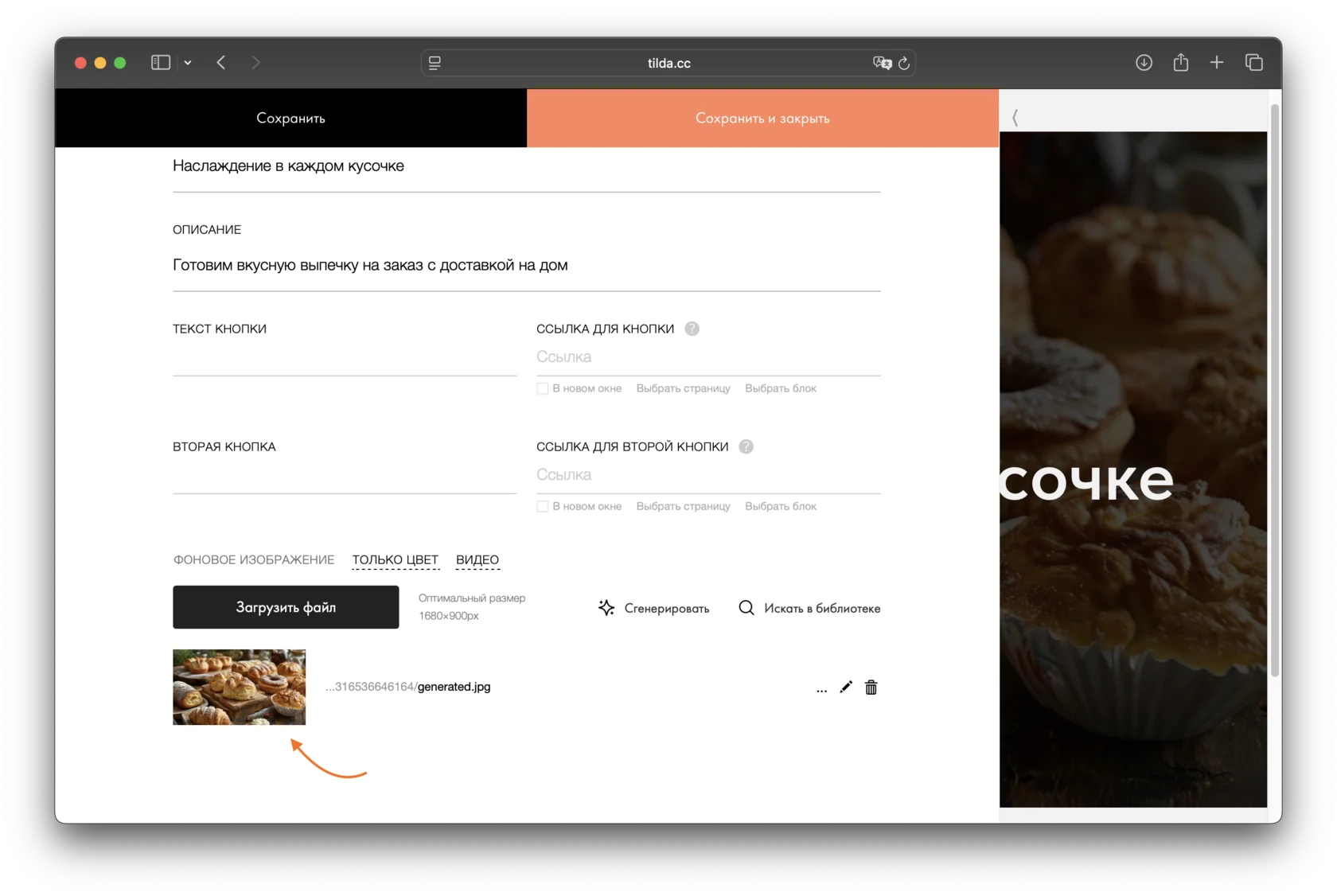
The image will be added to the block automatically.
Important: You can generate custom images in any block that supports images, except Zero Block.
Generation limit: no more than 15 image generations every 12 hours.
類似の質問

