
How to Edit Vibe Block
To get the best result, you can regenerate the block code using the same prompt, refine your original prompt, or enter a new request.
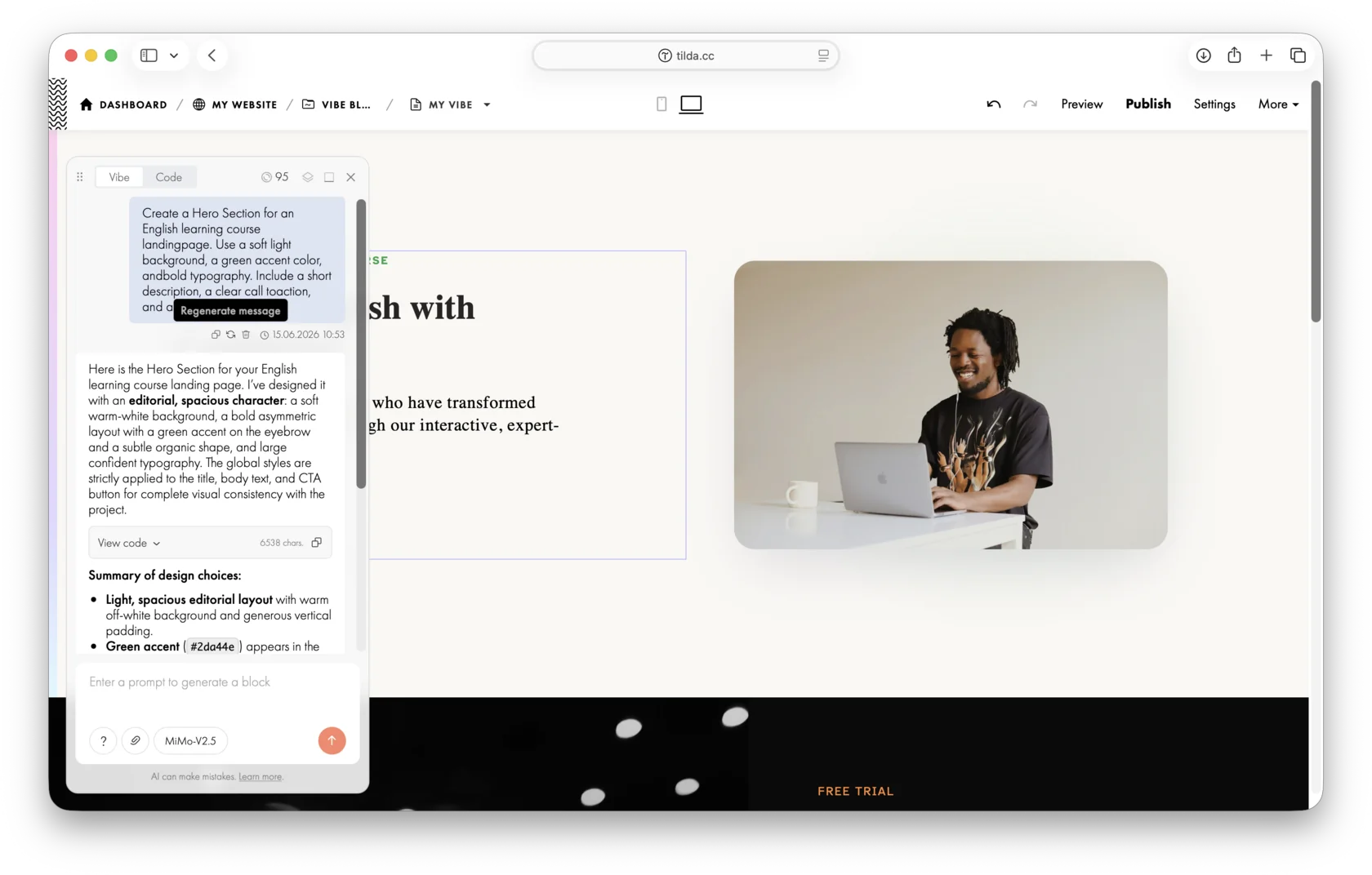
For example, you can simply describe what needs to be changed in the block, and the AI will update the code.
Once you enter a new prompt, you won't be able to regenerate the previous request. However, you can copy the previous prompt and submit it as a new request in the chat.
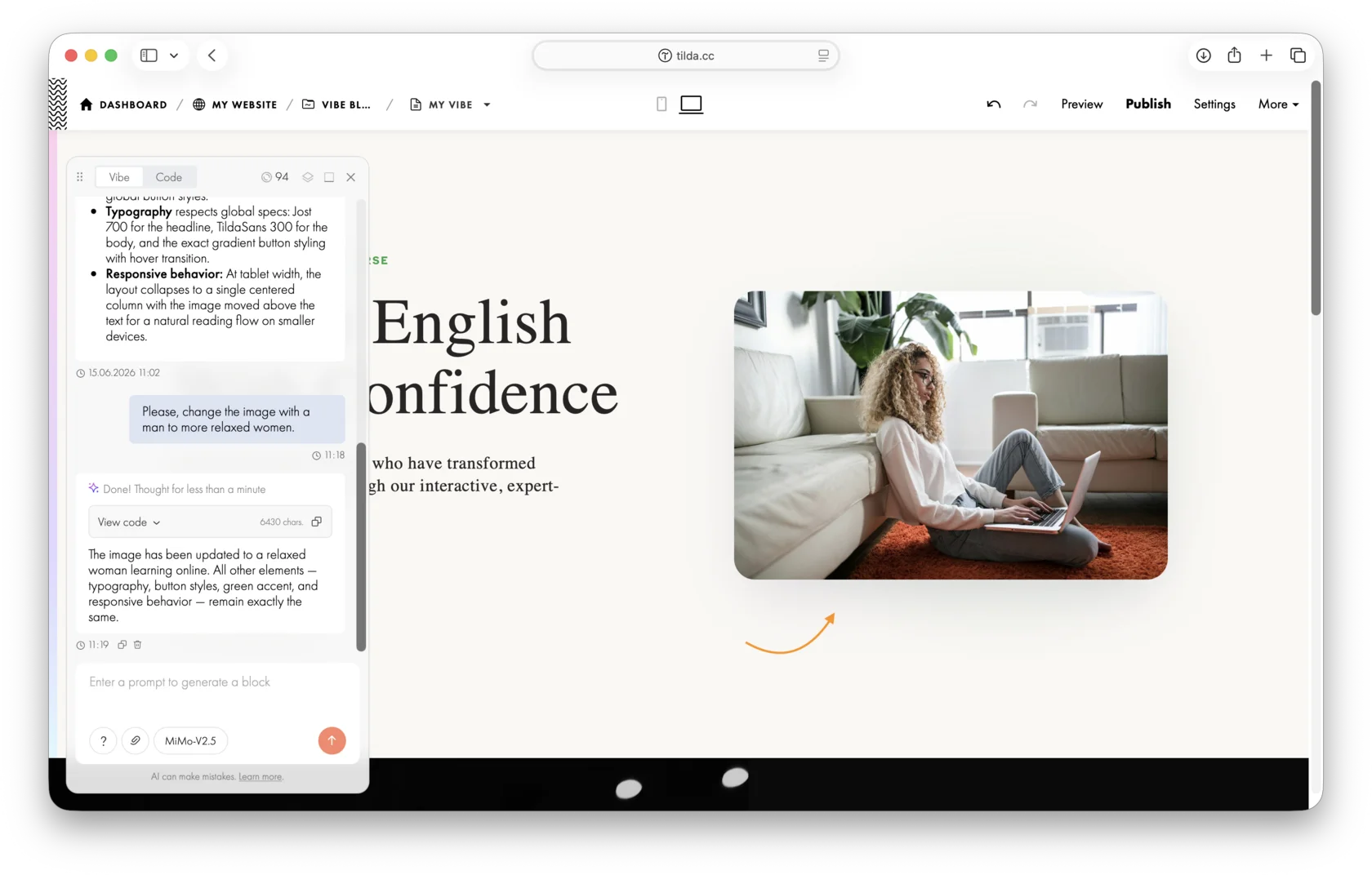
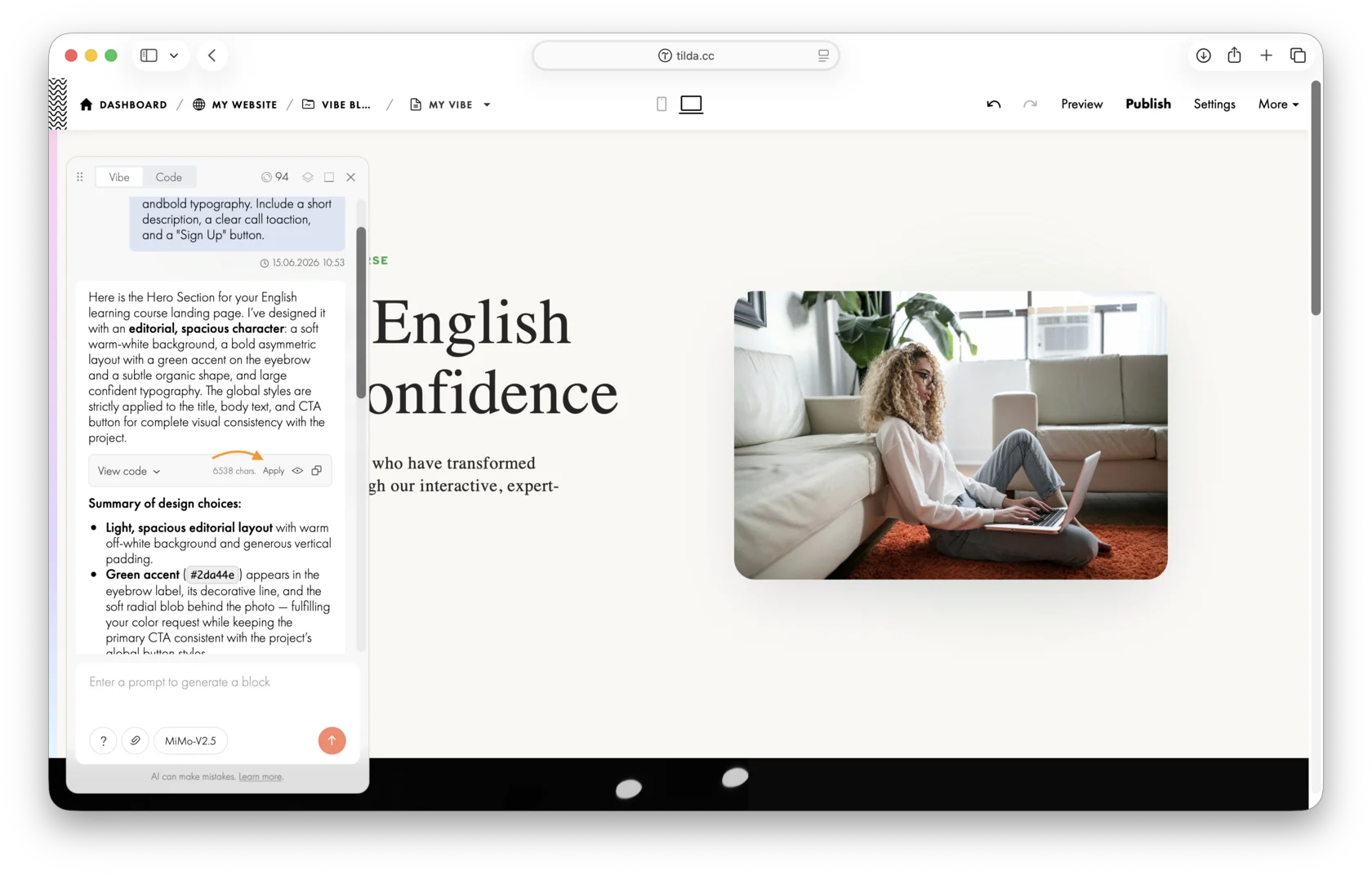
By default, the block shows the latest generated version. To view a previous version, click the eye icon. To apply it, click "Apply."
Using this option, you can switch between different versions and select the suitable version. To save your result, simply close the AI chat window.
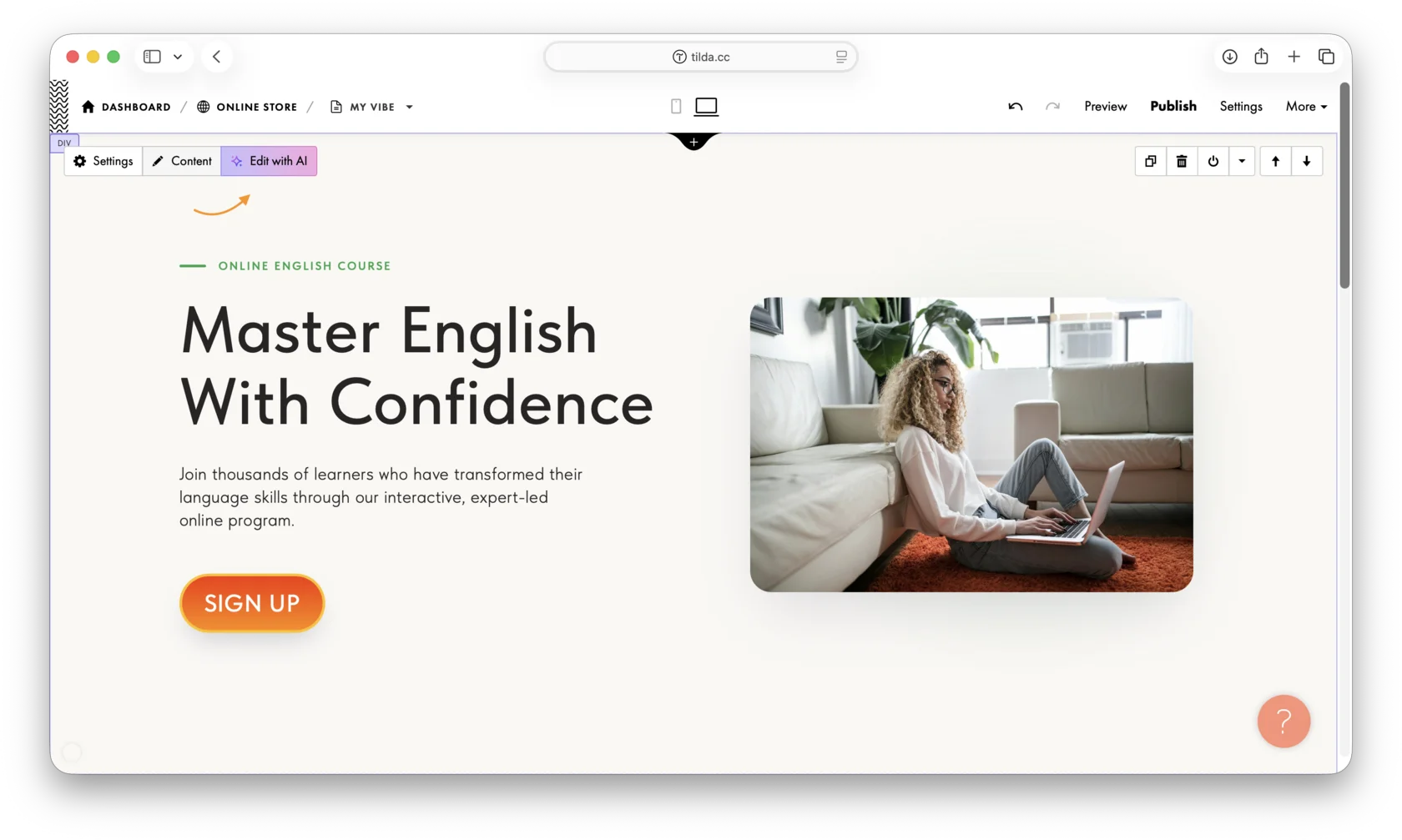
To edit the block again after closing the chat, click the "Edit with AI" button.
Preguntas similares

